

NFC Tag Reader iPhone – How to Use It for Meloenga® Digital Business Cards?
Meloenga® digital business cards are innovative solutions that allow everyone to wirelessly exchange contact (and not only) data. The transfer is carried out via NFC on iPhone or smartphone, allowing your clients and partners to get all the information they need with just a few taps. However, this requires some skill and knowledge to operate the NFC tag reader iPhone as not all users have prior experience with this.
So what NFC tags work with iPhone, and how can you customize it to use your Meloenga® business card?
Check for NFC on iPhone Availability
Despite the proliferation of contactless technologies, not all owners of Apple gadgets use it and are well aware of iPhone NFC settings. Start by examining the Meloenga® Compatible List to see if it fits your device. You can also inquire about the availability of the NFC tag reader iPhone from your authorized dealer or on the official website in the sections with models’ characteristics. Don’t worry if your device doesn’t have NFC, as Meloenga® has taken care of alternative ways to transfer your contact details via QR codes.
How to Use NFC on iPhone
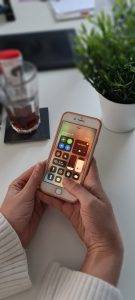
There are various ways to use the NFC feature, depending on the iPhone model. Starting with iOS 14, the “NFC Tag Reader” feature is enabled by default to all users who have at least an iPhone 7. So if you own an iPhone 7 or newer, you no longer need a third-party app to read NFC tags for business cards. You can turn this feature on by clicking the NFC button in the control center and keeping your iPhone next to the NFC tag to launch an event.
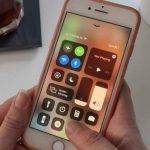


If you don’t see the button on your phone, you may need to add it to the Control Center and set up some NFC settings iPhone. Let’s continue as follows:
- Open the Settings app on your iPhone first.
- Then pick the “Control Center” option.
- Scroll down and press the green plus button on the “NFC Tag Reader” button’s left.
The “Background Tag Reading” feature on iPhone XS (Max), iPhone XR, iPhone 11, as well as iPhone 11 Pro (Max) and iPhone SE (2nd gen.) models, enables you to read NFC Tags automatically as soon as the iPhone screen is switched on without having to start the NFC Tag Reader iPhone first. The device scans for the NFC signal in the background. When a tag is identified, a message appears on the monitor that asks the user to open the event in the respective app.
For more information on how to use NFC Tag Reader on your iPhone check this Tutorial from iphone-tricks.com
How to Transfer Contact Data with Meloenga® DBC
Registration and activation of the Meloenga® digital profile do not require the mandatory availability of the NFC tag reader iPhone. You can also scan the QR image or initially go to the registration page. After, you can set up and customize a personal account online with the visual Meloenga® business card editor. Don’t forget to publish your profile so you can share it via smartphone or Apple NFC.
Bring your Meloenga® card to the back of the device, where the built-in NFC tag reader iPhone is usually located. After the signal comes, the phone will get a pop-up notification, which you can click on for the details. Done, now you can view the digital profile, save it, or add the necessary data to the contact book on your phone.
QR Codes as the Best NFC on iPhone Alternative
Although Meloenga® solutions work mainly through NFC tags for business cards, we also took care of the versatility of their application. Not every device is equipped with an iPhone NFC reader, which can be critical when transferring files and marketing information. That is why Meloenga® products can also be provided with QR codes on the back of the DBCs’ surface.
The printed QR code completely duplicates the path to your online profile, making it available for viewing and saving. Offer your customers to scan the QR image with a standard camera app to follow the link. It will take a little time and become a great alternative to the NFC tag reader iPhone.
Please note that QR code printing is an additional option that you can order for FREE when purchasing any Meloenga® black business card. Meloenga® white blanks fully implement your design, so they don’t offer a QR code option during checkout. In this case, you can add a QR image to the layout yourself or delegate it to our specialists.